You can print and export content from Tabulate.
Opening the Print & Export dialog
Click the Print icon in the Status bar (purple arrow below).
Tabulate Pro

Tabulate Lite

Print & Export dialog
Output Tab
From the Print & Export dialog, select your required Output format. For a tabulation, this can be one of: PDF, Power Point, Word, Excel, HTML, PNG, or CSV.
Basic options
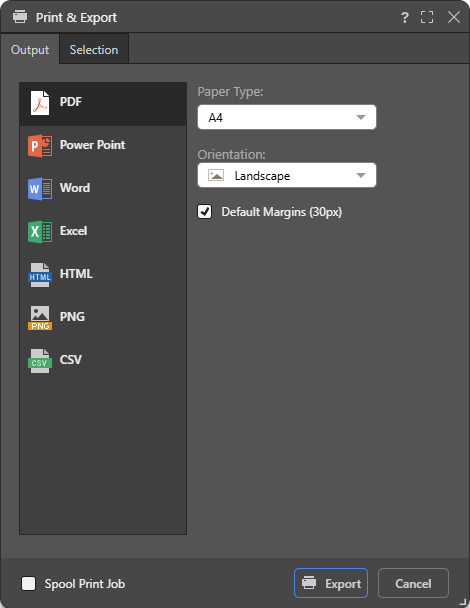
The basic print options. When creating a PNG, only Image Quality and Scale are relevant:
Paper Type
(PDF, Power Point, Word, HTML.) Select the "paper size" that you want to use from the dropdown list. Tip: You should select a size that is appropriate to your region, like A4 or Letter.
Orientation
(PDF, Power Point, Word, HTML.)
- Landscape: Make the output orientation landscape.
- Portrait: Make the output orientation portrait.
Image Quality
(Power Point, Word, PNG.) Select whether to incorporate images at low, medium, or high quality.
Default Margins
(PDF, Power Point, Word, HTML.) Set margins to the default size (30 pixels). Clear the checkbox to customize the margin size.
Excel
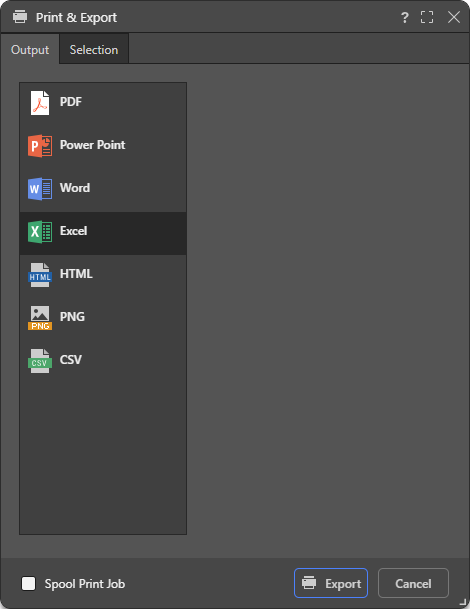
When exporting to Excel, Tabulate exports the spreadsheet with all the spreadsheet formatting. All references to Pyramid data and members are copied into the Excel spreadsheet as actual data values, but all spreadsheet formulas are left in formula format so Excel will be able to perform the calculations.
Note: There are no Export options when you export a tabulation to Excel.
CSV
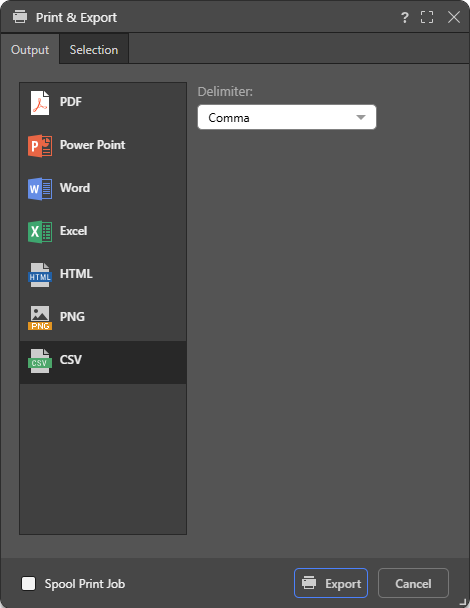
When exporting to a CSV file, the only option to set is for the Delimiter.
Delimiter (CSV only)
Indicate which character should be used as a delimiter in the CSV. This can be one of Comma, Pipe, Semi Colon, Space, and Tab.
Selection Tab
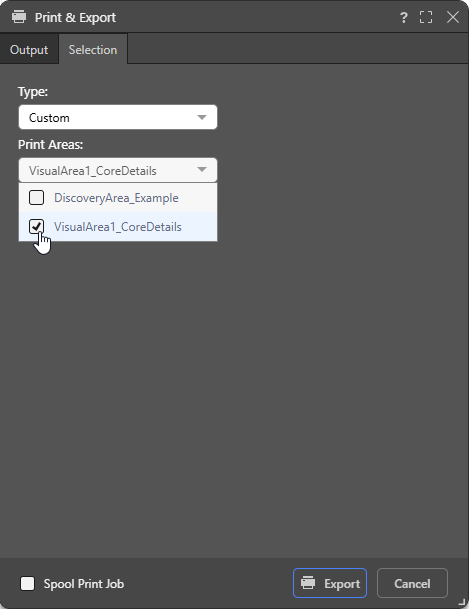
Select the Type of area you want to print:
- Print Area: Print the main Print Area.
- Custom: Select Custom, and then select one or more custom Print Areas (Visual Areas, Discovery Areas, or Print Areas) from the multi-select dropdown list.